Step
Open Business Central search
Use Alt+Q to open Tell Me and search for Extension Marketplace.
Tacto connect helps Business Central teams deliver purchasing data to Tacto quickly and reliably. Configure export scope and field structure in Business Central, then deliver files by ZIP download, Azure Blob Storage, or local storage in on-premises deployments.
Install the extension directly from Microsoft AppSource within Dynamics 365 Business Central.
Use Alt+Q to open Tell Me and search for Extension Marketplace.
Open the marketplace entry directly, or search for the app, open the marketplace entry and choose Get it now.
Follow the standard Dynamics 365 Business Central prompts.
Important: Allow HttpClient Requests
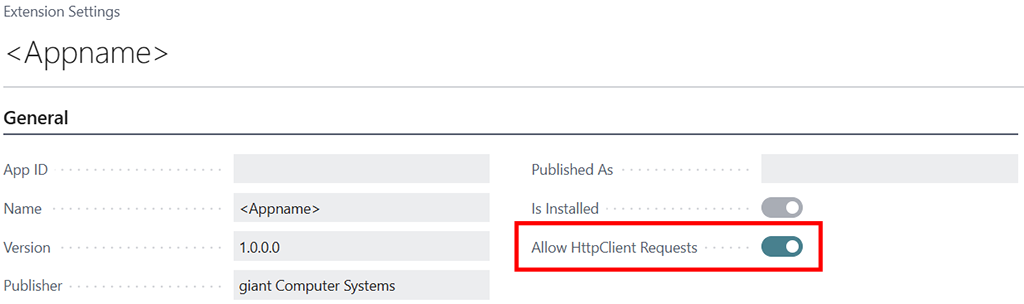
Because this app requires internet access to communicate with external web services, you must allow it to make HTTP requests. Open the Extension Management page, search for Tacto connect, and open the extension settings. Make sure the Allow HttpClient Requests toggle is enabled.
After installation, Tacto connect creates the setup record automatically and inserts a ready-to-use default export configuration.
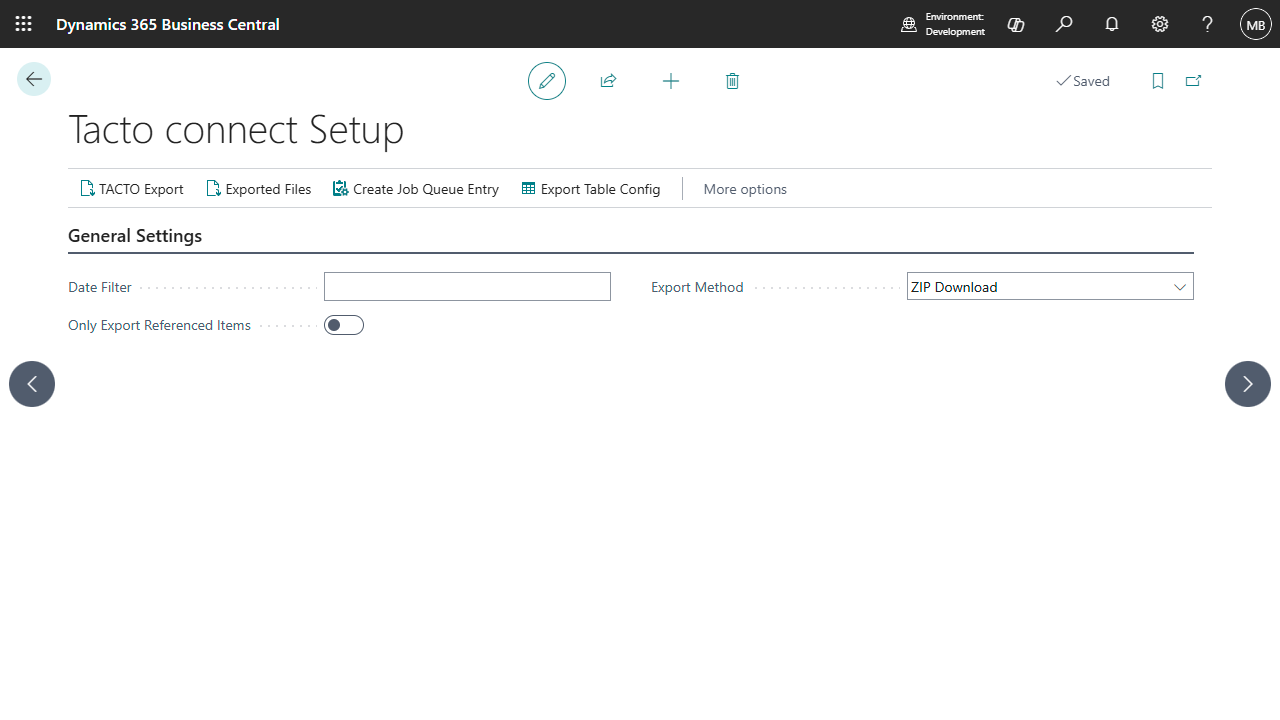
Press Alt+Q to open Tell Me and search for Tacto connect Setup. This page is your central starting point: it is where you choose how exports are delivered and where you start them.
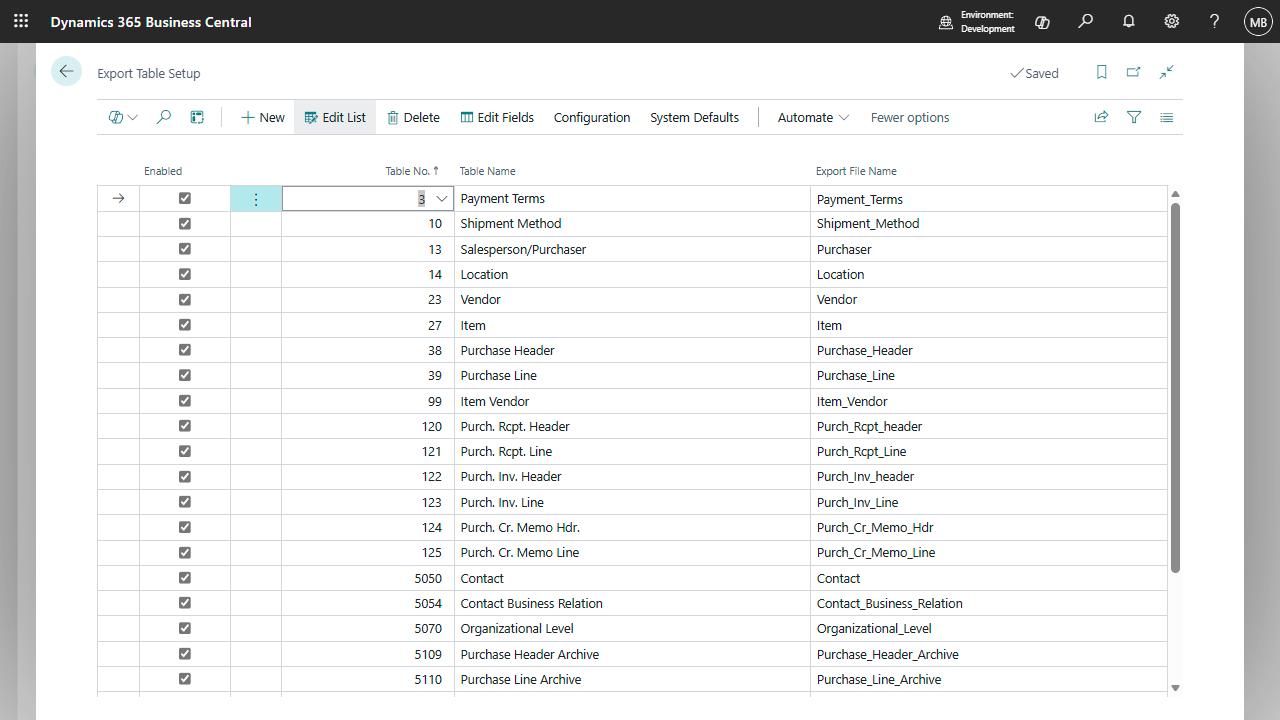
The installation routine inserts a starter configuration for 25 tables, including items, vendors, contacts, purchase documents, posted receipts, posted invoices, credit memos, price list lines, payment terms, locations, shipment methods, and item variants. Any table that does not exist on your Business Central version is simply skipped.
Azure defaults are also prefilled when the setup record is created:
Because all defaults ship enabled, a complete export can be produced within a minute of installation using the ZIP Download method described below - no Tacto account or external service required.
Tacto connect clearly separates administration from operational export execution.
| Permission set | Recommended use | Capabilities |
|---|---|---|
| Tacto connect Admin | BC administrators and owners of the Tacto setup | Configures export tables, fields, filters, and all other setup parameters, and maintains the complete export configuration. |
| Tacto connect User | Purchasing users who manually trigger exports | Can manually start the prepared export without changing export tables or field definitions. |
Practical assignment model
Assign Admin only to users who set up export tables and fields. User is intended for purchasing users who manually start exports based on that configuration.
The Tacto connect Setup page adapts to the selected export method and your deployment model.
| Field | What it does |
|---|---|
| Date Filter | Limits item and posted ledger-related data using a CALCDATE formula such as <-12M>, <-2Y>, or <-180D>. Leave it empty to disable date-based filtering. |
| Only Export Referenced Items | Restricts the export to records with purchasing relevance. To do this, each relevant table needs a field marked as the item filter so Tacto connect can identify the item reference used to scope those records. |
| Export Method | Controls whether the export is delivered as ZIP Download, Azure Blob Storage, or Local Storage. In SaaS, only ZIP Download and Azure Blob Storage are available. |
| Export Path | Required only for Local Storage. Defines the full server path where the CSV files are saved in on-premises environments. |
| Azure App ID / Client Secret / Tenant ID | OAuth2 client-credential parameters used to obtain an access token for Azure Storage. |
| Azure Account Name / Container / Blob Folder | Defines the exact Azure Storage target for uploaded CSV files. |
Run the first export without a date filter
For the initial export, leave the date filter empty so Tacto receives a complete data set. For all subsequent regular exports you can set a date filter – for example -30D for the last 30 days – to limit the transfer to records that have actually changed.
Azure mode requires outbound HTTP access
If you use Azure Blob Storage, make sure the extension is allowed to perform HttpClient requests in Business Central. Without that permission, token acquisition and uploads cannot succeed.
Each method uses the same CSV logic and only differs in delivery channel.
Best for manual exports in SaaS. Generated CSV files are staged internally and delivered as one ZIP archive.
Best for automated handoff to Tacto. Tacto connect authenticates via OAuth2 client credentials and uploads each CSV directly into the same Azure Blob Storage container Tacto reads from - no manual download step, particularly useful combined with the scheduled export described below.
Available in on-premises environments only. Each generated CSV is saved directly to the configured server path. The option is hidden in SaaS and cannot be selected there.
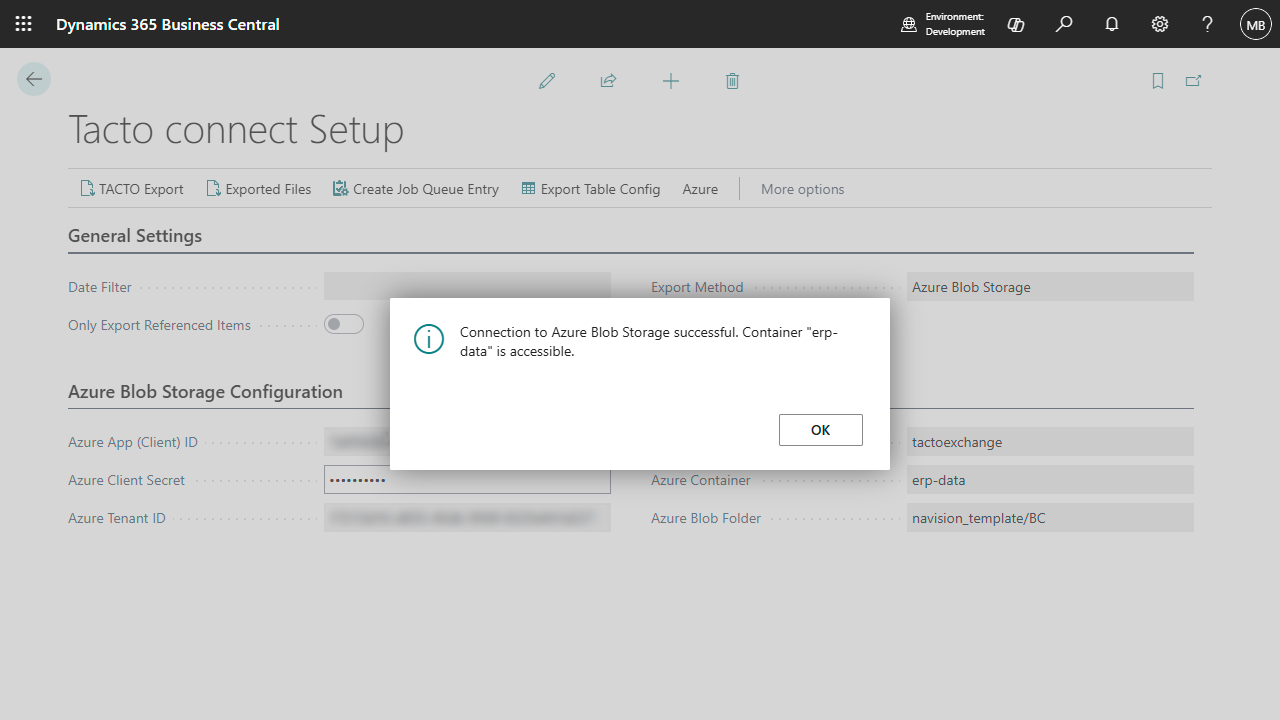
Because cloud credentials can be easy to get wrong, the setup page provides three test actions so you do not have to rely on a real export to find out whether the configuration works:
Run these tests first, then rely on the actual exports once they succeed.
The metadata-driven export model lets administrators adapt structure and filters without AL changes.
Open Export Table Config from the setup page to manage the list of exported tables. Each entry stores:
System records are tracked with ownership metadata (System Managed, System Version, User Modified) to support safe upgrades and controlled reset behavior.
.tct snapshot file for backup/transfer..tct file.Use Edit Fields on a table entry to open the field list. The page lets you add fields from the selected table and configure behavior per field:
>0, Purchase, 2).If a field has both Setup Date Filter and Static Field Filter, both filters are combined with logical AND during export.
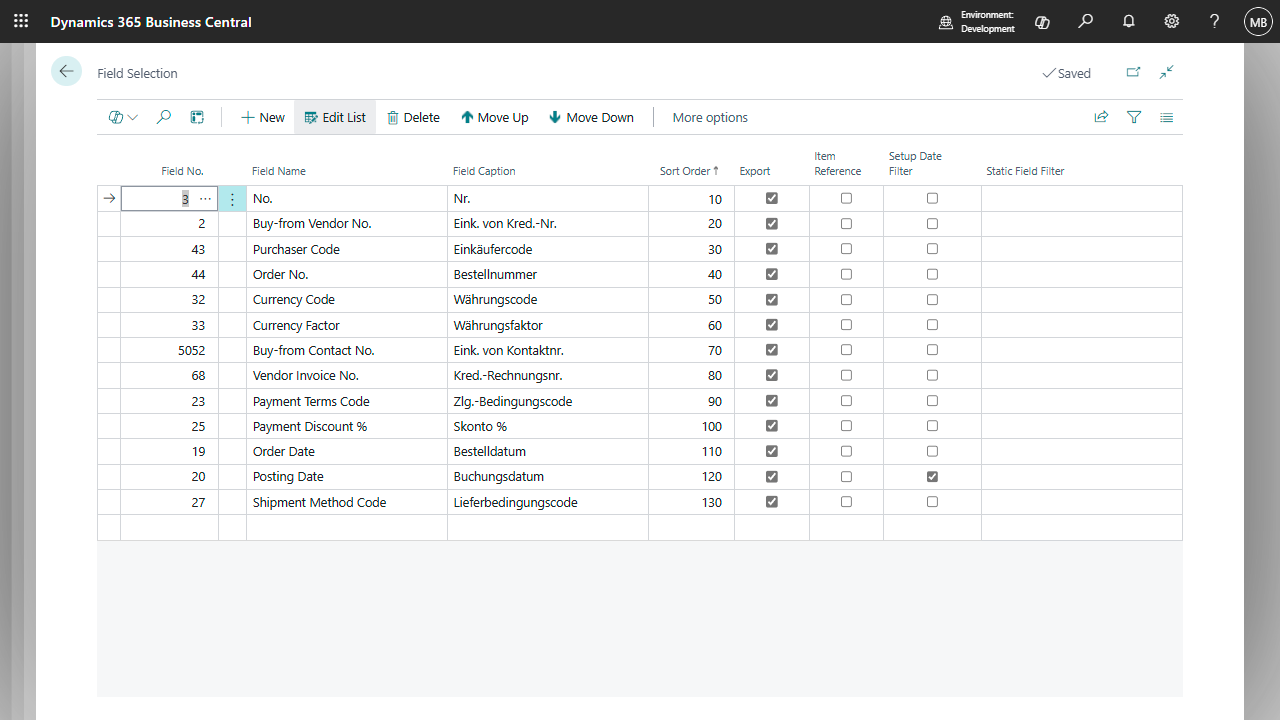
Business Central tables are large and general-purpose: the item table holds every item you have ever created, purchase lines include comment lines, and price lists mix your selling and buying prices. Exporting all of this unchanged would bury the relevant data in noise. Filtering lets you send Tacto only the rows and columns relevant to purchasing - and every filter is configured, never coded.
The filters do not compete - they stack. A row is included only if it clears every condition you have set: its table is enabled, it passes every static filter, it falls within the date window, and (if enabled) its item is one you actually buy. For the Purchase Line table with every option enabled, that means:
keep the line only if it is not a comment line (Type > 0) and it was posted within your date window and its item is one that appears somewhere in your purchasing.
The result is a focused file - recent purchase lines for items you actually buy - which is exactly the kind of data Tacto is designed to analyze.
The export itself is started from the TACTO Export action on the setup page.
Check the date filter, temporary-table option, and selected export method. If you use Local Storage, verify the export path. If you use Azure, verify all Azure credentials and target fields.
The extension reads the configured table list, builds the CSV header from the selected fields, applies table-specific filters, and exports only the records that pass the configured scope logic.
Depending on the export method, the files are downloaded as a ZIP, uploaded to Azure Blob Storage, or saved to the local server path.
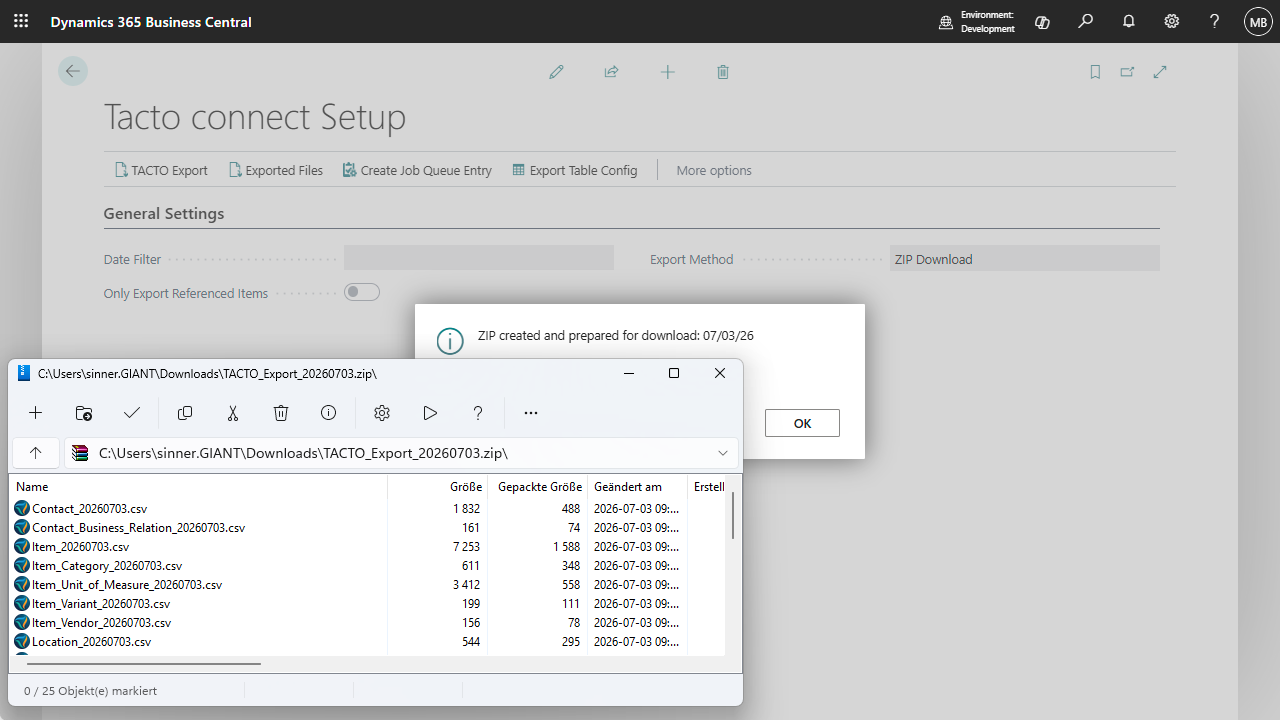
With ZIP Download, the browser downloads a single archive named TACTO_Export_ followed by today's date. Inside are one or more .csv files - one per enabled table, such as Vendor_…csv or Item_…csv. Each file uses UTF-8 encoding with semicolon-separated values: the first row contains the column headings in the order configured on the Field Selection page, and every following row is one record.
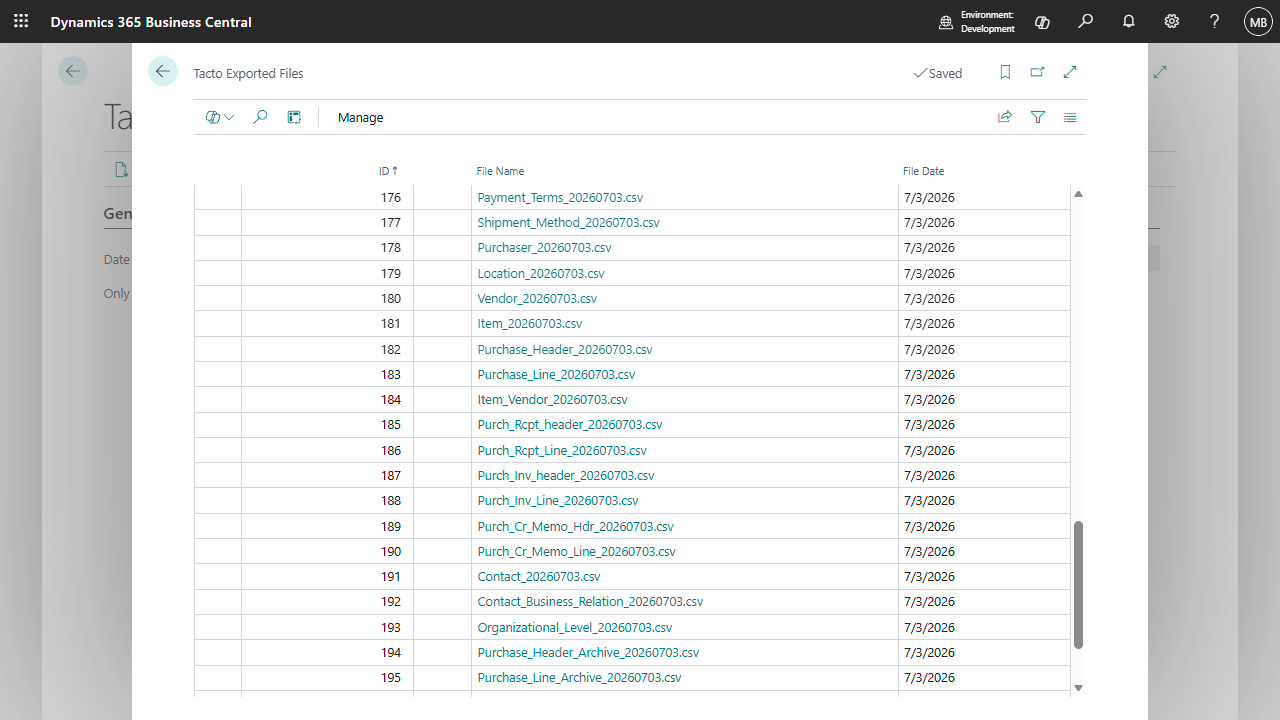
Every generated file is also retained on the Exported Files page, reachable from the setup page's action bar. This holding area lets you re-download or verify individual files, or select rows and delete them to tidy up - mainly useful for troubleshooting, since it is not required for normal operation.
| Area | Filter logic |
|---|---|
| Items | If a date filter is set, records are filtered on Last Date Modified to export only newer changes. |
| Purchase receipts, invoices, and credit memos | Posted document tables are filtered by Posting Date when a date filter is active. |
| Purchase lines | Only lines with a non-empty type are exported. |
| Price List Line | Only purchase prices with source type Vendor are exported. |
| Referenced-item mode | When Only Export Referenced Items is active, records are scoped by configured item-reference fields and purchasing activity context. |
| Static field filters | Configured static field filters are applied even for fields that are not exported (filter-only fields). |
Most customers want the export to run on its own instead of pressing TACTO Export manually every time.
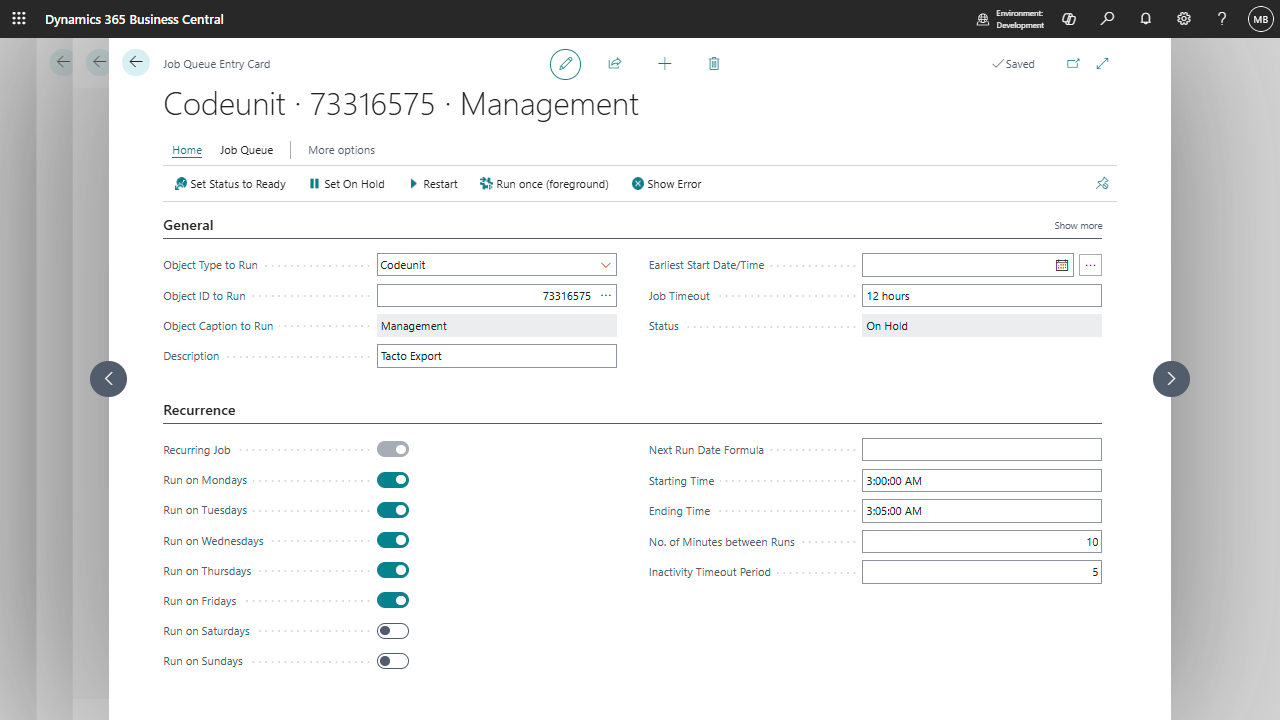
Press Create Job Queue Entry on the setup page to create a scheduled task that runs the export on weekday mornings. As a safeguard the entry is created on hold, so it cannot start unexpectedly the moment you click - review it and activate it yourself from Business Central's standard Job Queue Entries list once you are satisfied with the configuration.
From then on, exports run automatically using whichever delivery method and filters you have configured. Combined with the Azure Blob Storage delivery method, this makes the entire handoff to Tacto fully hands-off.
Whether you have technical questions, need guidance during your rollout, or want to share feature requests, our dedicated Dynamics 365 Business Central team is ready to assist you. Drop us a message, and we will ensure you get the absolute most out of our apps.